
Programming
-
Why Svelte 5 Wants `let` Instead of `const` (And Why Your Linter Is Confused)
If you’ve been working with Svelte 5 and a linter like Biome, you might have run into this sitauation:
use
constinstead ofletHowever, Svelte actually needs that
let.Have you ever wondered why this is?
Here is an attempt to explain it to you.
Svelte 5’s reactivity model is different from the rest of the TypeScript world, and some of our tooling hasn’t quite caught up yet.
The
constRule Everyone KnowsIn standard TypeScript and React, the
prefer-construle is a solid best practice.If you declare a variable and never reassign it, use
const. It communicates intent clearly: this binding won’t change. You would thinkBut there is confusion when it comes to objects that are defined as
const.Let’s take a look at a React example:
// React — const makes perfect sense here
const [count, setCount] = useState(0);
const handleClick = () => setCount(count + 1);
count is a number (primitive). setCount is a function.
Neither can modify itself so it makes sense to use
const.Svelte 5 Plays by Different Rules
Svelte 5 introduced runes — reactive primitives like
$state(),$derived(), and$props()that bring fine-grained reactivity directly into JavaScript.Svelte compiler transforms these declarations into getters and setters behind the scenes.
The value does get reassigned, even if your code looks like a simple variable.
<script lang="ts">
  let count = $state(0);
</script>

<button onclick={() => count++}>
  Clicked {count} times
</button>
Biome Gets This Wrong
But they are trying to make it right. Biome added experimental Svelte support in v2.3.0, but it has a significant limitation: it only analyzes the
<script>block in isolation.It doesn’t see what happens in the template. So when Biome looks at this:
<script lang="ts">
  let isOpen = $state(false);
</script>

<button onclick={() => isOpen = !isOpen}>
  Toggle
</button>
It only sees
let isOpen = $state(false)and thinks: “this variable is never reassigned, useconst.”It completely misses the
isOpen = !isOpenhappening in the template markup.If you run
biome check --write, it will automatically changelettoconstand break your app.The Biome team has acknowledged this as an explicit limitation of their partial Svelte support.
For now, the workaround is to either disable the
useConstrule for Svelte files or addbiome-ignorecomments where needed.What About ESLint?
The Svelte ESLint plugin community has proposed two new rules to handle this properly:
svelte/rune-prefer-let(which recommendsletfor rune declarations) and a Svelte-awaresvelte/prefer-constthat understands reactive declarations. These would give you proper linting without the false positives.My Take
Svelte 5’s runes are special and deserve their own way of handling variable declarations.
React hooks are different.
Svelte’s compiler rewrites your variable.
I like Svelte.
Please fix Biome.
Don’t make me use eslint.
/ Programming / svelte / Typescript / Biome / Linting
-
REPL-Driven Development Is Back (Thanks to AI)
So you’ve heard of TDD. Maybe BDD. But have you heard of RDD?
REPL-driven development. I think most programmers these days don’t work this way. The closest equivalent most people are familiar with is something like Python notebooks—Jupyter or Colab.
But RDD is actually pretty old. Back in the 70s and 80s, Lisp and Smalltalk were basically built around the REPL. You’d write code, run it immediately, see the result, and iterate. The feedback loop was instant.
Then the modern era of software happened. We moved to a file-based workflow, probably stemming from Unix, C, and Java. You write source code in files. There’s often a compilation step. You run the whole thing.
The feedback loop got slower, more disconnected. Some languages we use today like Python, Ruby, JavaScript, PHP include a REPL, but that’s not usually how we develop. We write files, run tests, refresh browsers.
Here’s what’s interesting: AI coding assistants are making these interactive loops relevant again.
The new RDD is natural language as a REPL.
Think about it. The traditional REPL loop was:
- Type code
- System evaluates it
- See the result
- Iterate
The AI-assisted loop is almost identical:
- Type (or speak) your intent in natural language
- AI interprets and generates code
- AI runs it and shows you the result
- Iterate
You describe what you want. The AI writes the code. It executes. You see what happened. If it’s not right, you clarify, and the loop continues.
This feels fundamentally different from the file-based workflow most of us grew up with. You’re not thinking about which file to open, You’re thinking about what you want to happen, and you’re having a conversation until it does.
Of course, this isn’t a perfect analogy. With a traditional REPL, you have more control. You understood exactly what was being evaluated because you wrote it.
>>> while True: ... history.repeat()/ AI / Programming / Development
-
I kinda want to build more git/hub tools. I guess I have been trying to get to 20 repos that I am proud of. I certainly don’t all of them public. I am taking most of mine private or archiving. I should probably focus on like 5 or 1. Open claw happens when you become hyper fixated on just one thing.
/ Programming / Github
-
Why Data Modeling Matters When Building with AI
If you’ve started building software recently, especially if you’re leaning heavily on AI tools to help you code—here’s something that might not be obvious: data modeling matters more now than ever.
AI is remarkably good at getting the local stuff right. Functions work. Logic flows. Tests pass. But when it comes to understanding the global architecture of your application? That’s where things get shaky.
Without a clear data model guiding the process, you’re essentially letting the AI do whatever it thinks is best. And what the AI thinks is best isn’t always what’s best for your codebase six months from now.
The Flag Problem
When you don’t nail down your data structure upfront, AI tools tend to reach for flags to represent state. You end up with columns like
is_draft,is_published,is_deleted, all stored as separate boolean fields.This seems fine at first. But add a few more flags, and suddenly you’ve got rows where
is_draft = trueANDis_published = trueANDis_deleted = true.That’s an impossible state. Your code can’t handle it because it shouldn’t exist.
Instead of multiple flags, use an enum:
status: draft | published | deleted. One field. Clear states. No contradictions.This is just one example of why data modeling early can save you from drowning in technical debt later.
Representation, Storage, and Retrieval
If data modeling is about the shape of your data, data structures determine how efficiently you represent, store, and retrieve it.
This matters because once you’ve got a lot of data, migrating from one structure to another, or switching database engines—becomes genuinely painful.
When you’re designing a system, think about its lifetime.
- How much data will you store monthly? Yearly?
- How often do you need to retrieve it?
- Does recent data need to be prioritized over historical data?
- Will you use caches or queues for intermediate storage?
Where AI Takes Shortcuts
AI agents inherit our bad habits. Lists and arrays are everywhere in their training data, so they default to using them even when a set, hash map, or dictionary would perform dramatically better.
In TypeScript, I see another pattern constantly: when the AI hits type errors, it makes everything optional.
Problem solved, right? Except now your code is riddled with null checks and edge cases that shouldn’t exist.
Then there’s the object-oriented problems. When building software that should use proper OOP patterns, AI often takes shortcuts in how it represents data. Those shortcuts feel fine in the moment but create maintenance nightmares down the road.
The Prop Drilling Epidemic
LLM providers have optimized their agents to be nimble, managing context windows so they can stay productive. That’s a good thing. But that nimbleness means the agents don’t always understand the full structure of your code.
In TypeScript projects, this leads to prop drilling: passing the entire global application object down through nested components.
Everything becomes tightly coupled. When you need to change the structure of an object, it’s like dropping a pebble in a pond. The ripples spread everywhere.
You change one thing, and suddenly you’re fixing a hundred other places that all expected the old structure.
The Takeaway
If you’re building with AI, invest time in data modeling before you start coding. Define your data structures. Think about how your data will grow and how you’ll access it.
The AI can help you build fast. But you still need to provide the architectural vision. That’s not something you can blindly trust the AI to handle, not yet, anyway.
-
A specification for adding human and machine readable meaning to commit messages
/ Programming / Git / links / code / commit
-
JavaScript Still Doesn't Have Types (And That's Probably Fine)
Here’s the thing about JavaScript and types: it doesn’t have them, and it probably won’t any time soon.
Back in 2022, there was a proposal to add TypeScript-like type syntax directly to JavaScript. The idea was being able to write type annotations without needing a separate compilation step. But the proposal stalled because the JavaScript community couldn’t reach consensus on implementation details.
The core concern? Performance. JavaScript is designed to be lightweight and fast, running everywhere from browsers to servers to IoT devices. Adding a type system directly into the language could slow things down, and that’s a tradeoff many aren’t willing to make.
So the industry has essentially accepted that if you want types in JavaScript, you use TypeScript. And honestly? That’s fine.
TypeScript: JavaScript’s Type System
TypeScript has become the de facto standard for typed JavaScript development. Here’s what it looks like:
// TypeScript Example
let name: string = "John";
let age: number = 30;
let isStudent: boolean = false;

// Function with type annotations
function greet(name: string): string {
  return `Hello, ${name}!`;
}

// Array with type annotation
let numbers: number[] = [1, 2, 3];

// Object with type annotation
let person: { name: string; age: number } = { name: "Alice", age: 25 };
TypeScript compiles down to plain JavaScript, so you get the benefits of static type checking during development without any runtime overhead. The types literally disappear when your code runs.
The Python Parallel
You might be interested to know that the closest parallel to this JavaScript/TypeScript situation is actually Python.
Modern Python has types, but they’re not enforced by the language itself. Instead, you use third-party tools like mypy for static analysis and pydantic for runtime validation. There’s actually a whole ecosystem of libraries supporting types in Python in various ways, which can get a bit confusing.
Here’s how Python’s type annotations look:
# Python Example
name: str = "John"
age: int = 30
is_student: bool = False

# Function with type annotations
def greet(name: str) -> str:
    return f"Hello, {name}!"

# List with type annotation
numbers: list[int] = [1, 2, 3]

# Dictionary with type annotation
person: dict[str, int] = {"name": "Alice", "age": 25}
Look familiar? The syntax is surprisingly similar to TypeScript. Both languages treat types as annotations that help developers and tools understand the code, but neither strictly enforces them at runtime (unless you add additional tooling).
What This Means for You
If you’re writing JavaScript, stop, and use TypeScript. It’s mature and widely adopted. Now also you can run TypeScript directly in some runtimes like Bun or Deno.
Type systems were originally omitted from many of these languages because the creators wanted to establish a low barrier to entry, making it significantly easier for people to adopt the language.
Additionally, computers at the time were much slower, and compiling code with rigorous type systems took a long time, so creators prioritized the speed of the development loop over strict safety.
However, with the power of modern computers, compilation speed is no longer a concern. Furthermore, the type systems themselves have improved significantly in efficiency and design.
Since performance is no longer an issue, the industry has shifted back toward using types to gain better structure and safety without the historical downsides.
/ Programming / Python / javascript / Typescript
-
/ Programming / Development / links / handbook / references
-
The Rise of Spec-Driven Development: A Guide to Building with AI
Spec-driven development isn’t new. It has its own Wikipedia page and has been around longer than you might realize.
With the explosion of AI coding assistants, this approach has found new life and we now have a growing ecosystem of tools to support it.
The core idea is simple: instead of telling an AI “hey, build me a thing that does the boops and the beeps” then hoping it reads your mind, you front-load the thinking.
It’s kinda obvious, with it being in the name, but in case you are wondering, here is how it works.
The Spec-Driven Workflow
Here’s how it typically works:
-
Specify: Start with requirements. What do you want? How should it behave? What are the constraints?
-
Plan: Map out the technical approach. What’s the architecture? What “stack” will you use?
-
Task: Break the plan into atomic, actionable pieces. Create a dependency tree—this must happen before that. Define the order of operations. This is often done by the tool.
-
Implement: You work with whatever tool to build the software from your task list. The human is (or should be) responsible for deciding when a task is completed.
You are still a part of the process. It’s up to you to make the decisions at the beginning. It’s up to you to define the approach. And it’s up to you to decide you’re done.
So how do you get started?
The Tool Landscape
The problem we have now is there is not a unified standard. The tool makers are busy building the moats to take time to agree.
Standalone Frameworks:
-
Spec-Kit - GitHub’s own toolkit that makes “specifications executable.” It supports multiple AI agents through slash commands and emphasizes intent-driven development.
-
BMAD Method - Positions AI agents as “expert collaborators” rather than autonomous workers. Includes 21+ specialized agents for different roles like product management and architecture.
-
GSD (Get Shit Done) - A lightweight system that solves “context rot” by giving each task a fresh context window. Designed for Claude Code and similar tools.
-
OpenSpec - Adds a spec layer where humans and AI agree on requirements before coding. Each feature gets its own folder with proposals, specs, designs, and task lists.
-
Autospec - A CLI tool that outputs YAML instead of markdown, enabling programmatic validation between stages. Claims up to 80% reduction in API costs through session isolation.
Built Into Your IDE:
The major AI coding tools have adopted this pattern too:
- Kiro - Amazon’s new IDE with native spec support
- Cursor - Has a dedicated plan mode
- Claude Code - Plan mode for safe code analysis
- VSCode Copilot - Chat planning features
- OpenCode - Multiple modes including planning
- JetBrains Junie - JetBrains' AI assistant
- Google Antigravity - Implementation planning docs
- Gemini Conductor - Orchestration for Gemini CLI
Memory Tools
- Beads - Use it to manage your tasks. Works very well with your Agents in Claude Code.
Why This Matters
When first getting started building with AI, you might dive right in and be like “go build thing”. You keep then just iterating on a task until it falls apart once you try to do anything substantial.
You end up playing a game of whack-a-mole, where you fix one thing and you break another. This probably sounds familiar to a lot of you from the olden times of 2 years ago when us puny humans did all the work. The point being, even the robots make mistakes.
Another thing that you come to realize is it’s not a mind reader. It’s a prediction engine. So be predictable.
What did we learn? With spec-driven development, you’re in charge. You are the architect. You decide. The AI just handles the details, the execution, but the AI needs structure, and so these are the method(s) to how we provide it.
/ AI / Programming / Tools / Development
-
-
Tessl - Agent Enablement Platform
Tessl helps teams build AI-native software by giving coding agents structured, versioned context. Ship AI-powered systems that hold up in real codebases.
/ AI / Programming / links / agent / automation / platform
-
Shu has a great article on performance:
Performance is like a garden. Without constant weeding, it degrades.
It’s not just a JavaScript thing, it’s a mindset. We keep making the same mistakes even with solid understanding of the code because just like Agents we too have a context window. It takes ongoing maintenance to keep the garden looking good.
Worth a read: shud.in/thoughts/…
-
I’m reading an article today about a long-term programmer coming to terms with using Claude Code. There’s a quote at the end that really stuck with me: “It’s easy to generate a program you don’t understand, but it’s much harder to fix a program that you don’t understand.”
I concur, while building it may be fun, guess what? Once you build it, you got to maintain it, and as a part of that, it means you got to know how it works for when it doesn’t.
/ AI / Programming / Claude-code
-
Security and Reliability in AI-Assisted Development
You may not realize it, but AI code generation is fundamentally non-deterministic. It’s probabilistic at its core, it’s predicting code rather than computing it.
And while there’s a lot of orchestration happening between the raw model output and what actually lands in your editor, you can still get wildly different results depending on how you use the tools.
This matters more than most people realize.
Garbage In, Garbage Out (Still True)
The old programming adage applies here with renewed importance. You need to be explicit with these tools. Adding predictability into how you build is crucial.
Some interesting patterns:
- Specialized agents set up for specific tasks
- Skills and templates for common operations
- Orchestrator conversations that plan but don’t implement directly
- Multiple conversation threads working on the same codebase via Git workspaces
The more structure you provide, the more consistent your output becomes.
The Security Problem
This topic doesn’t get talked about enough. All of our common bugs have snuck into the training data. SQL injection patterns, XSS vulnerabilities, insecure defaults… they’re all in there.
The model can’t always be relied upon to build it correctly the first time. Then there’s the question of trust.
Do you trust your LLM provider?
Is their primary focus on quality and reliable, consistent output? What guardrails exist before the code reaches you? Is the model specialized for coding, or is it a general-purpose model that happens to write code?
These are important engineering questions.
Deterministic Wrappers Around Probabilistic Cores
The more we can put deterministic wrappers around these probabilistic cores, the more consistent the output will be.
So, what does this look like in practice?
Testing is no longer optional. We used to joke that we’d get to testing when we had time. That’s not how it works anymore. Testing is required because it provides feedback to the models. It’s your mechanism for catching problems before they compound.
Testing is your last line of defense against garbage sneaking into the system.
AI-assisted review is essential. The amount of code you can now create has increased dramatically. You need better tools to help you understand all that code. The review step, typically done during a pull request, is now crucial for product development. Not optional. Crucial.
The models need to review itself, or you need a separate review process that catches what the generating step missed.
The Takeaway
We’re in an interesting point in time. These tools can dramatically increase your output, but only if you build the right guardrails around them should we trust the result.
Structure your prompts. Test everything. Review systematically. Trust but verify.
The developers who figure out how to add predictability to unpredictable processes are the ones who’ll who will be shipping features instead of shitting out code.
/ DevOps / AI / Programming
-
Learning to Program in 2026
If I had to start over as a programmer in 2026, what would I do differently? This question comes up more and more and with people actively building software using AI, it’s as relevant as ever.
Some people will tell you to pick a project and learn whatever language fits that project best. Others will push JavaScript because it’s everywhere and you can build just about anything with it. Both are reasonable takes, but I do think there’s a best first language.
However, don’t take my word for it. Listen to Brian Kernighan. If you’re not familiar with the name, he co-authored The C Programming Language back in 1978 and worked at Bell Labs alongside the creators of Unix. Oh also, he is a computer science Professor at Princeton. This man TAUGHT programming to generations of computer scientists.
There’s an excellent interview on Computerphile with Kernighan where he makes a compelling case for Python as the first language.
Why Python?
Kernighan makes three points that you should listen to.
First, the “no limitations” argument. Tools like Scratch are great for kids or early learners, but you hit a wall pretty quickly. Python sits in a sweet spot—it’s readable and approachable, but the ecosystem is deep enough that you won’t outgrow it.
Second, the skills transfer. Once you learn the fundamentals—loops, variables, data structures—they apply everywhere. As Kernighan puts it: “If you’ve done N programming languages, the N+1 language is usually not very hard to get off the ground.”
Learning to think in code matters more than any specific syntax.
Third, Python works great for prototyping. You can build something to figure out your algorithms and data structures, then move to another language depending on your needs.
Why Not JavaScript?
JavaScript is incredibly versatile, but it throws a lot at beginners. Asynchronous behavior, event loops,
thisbinding, the DOM… and that’s a lot of cognitive overhead when you’re just trying to grasp what a variable is.Python’s readable syntax lets you focus on learning how to think like a programmer. Fewer cognitive hurdles means faster progress on the fundamentals that actually matter.
There’s also the type system. JavaScript’s loose equality comparisons (
==vs===) and automatic type coercion trip people up constantly.Python is more predictable. When you’re learning, predictable is good.
The Path Forward
So here’s how I’d approach it: start with Python and focus on the basics. Loops, variables, data structures.
Get comfortable reading and writing code. Once you’ve got that foundation, you can either go deeper with Python or branch out to whatever language suits the projects you want to build.
The goal isn’t to master Python, it’s to learn how to think about problems and express solutions in code.
That skill transfers everywhere, including reviewing AI-generated code in whatever language you end up working with.
There are a ton of great resources online to help you learn Python, but one I see consistently is Python for Everyone by Dr Chuck.
Happy coding!
/ Programming / Python / learning
-
Two Arguments Against AI in Programming (And Why I'm Not Convinced)
I’ve been thinking about the programmers who are against AI tools, and I think their arguments generally fall into two camps.
Of course, these are just my observations, so take them with a grain of salt, or you know, tell me I’m a dumbass in the comments.
The Learning Argument
The first position is that AI prevents you from learning good software engineering concepts because it does the hard work for you.
All those battle scars that industry veterans have accumulated over the years aren’t going to be felt by the new breed. For sure, the painful lessons about why you should do something this way and not that way are important to preserve into the future.
Maybe we’re already seeing anti-patterns slip back into how we build code? I don’t know for sure, its going to require some PHD level research to figure it out.
To this argument I say, if we haven’t codified the good patterns by now, what the hell have we all been doing? I think we have more good patterns in the public code than there are bad ones.
So just RELAX! The cream will rise to the top. The glass is half full. We’ll be fine… Which brings me to the next argument.
The Non-Determinism Argument
The second position comes from people who’ve dug into how large language models actually work.
They see that it’s predicting the next token, and they start thinking of it as this fundamentally non-deterministic thing.
How can we trust software built on predictions? How do we know what’s actually going to happen when everything is based on weights created during training?
Here’s the thing though: when you’re using a model from a provider, you’re not getting raw output. There’s a whole orchestration layer. There’s guardrails, hallucination filters, mixture of experts approaches, and the thinking features that all work together to let the model double-check its work before responding.
It’s way more sophisticated than “predict the next word and hope for the best.”
That said, I understand the discomfort. We’re used to deterministic systems where the same input reliably produces the same output.
We are are now moving from those type of systems to ones that are probabilistic.
Let me remind you, math doesn’t care about the differences between a deterministic and a probabilistic system. It just works, and so we1.
The Third Argument I’m Skipping
There’s obviously a third component; the ethical argument about training data, labor displacement, and whether these tools should exist at all.
I will say this though, it’s too early to make definitive ethical judgments on a tool while we’re still building it, while we’re still discovering what it’s actually useful for.
Will it all be worth it in the end? We won’t know until the end.
-
This “we” I use to mean us as in the human race, but also our software we build. ↩︎
-
-
When do you think everyone will finally agree that Python is Python 3 and not 2? I know we aren’t going to get a major version bump anytime soon, if ever again, but we really should consider putting uv in core… Python needs modern package management baked in.
/ Programming / Python
-
OpenCode | The open source AI coding agent
OpenCode - The open source coding agent.
/ AI / Programming / Tools / links / agent / open source / code
-
Amp is a frontier coding agent that lets you wield the full power of leading models.
/ AI / Programming / Tools / links / agent / automation / code
-
vibe is the bait, code is the switch.
Vibe coding gets people in the door. We all know the hooks. Once you’re actually building something real, you still need to understand what the code is doing. And that’s not a bad thing.
/ AI / Programming / Vibe-coding
-
Stay updated with the latest news, feature releases, and critical security and code quality blogs from CodeAnt AI.
/ AI / Programming / blogging / links / security
-
Claude Code Learning Hub - Master AI-Powered Development
Learn Claude Code, VS Code, Git/GitHub, Python, and R with hands-on tutorials. Build real-world projects with AI assistance.
/ Programming / Development / links / tutorials / code / coding lessons / learning
-
Shadcn Studio - Shadcn UI Components, Blocks & Templates
Accelerate your project development with ready-to-use, & customizable 1000+ Shadcn UI Components, Blocks, UI Kit, Boilerplate, Templates & Themes with AI Tools.
-
Introducing api2spec: Generate OpenAPI Specs from Source Code
You’ve written a beautiful REST API. Routes are clean, handlers are tested and the types are solid. But where’s your OpenAPI spec? It’s probably outdated, incomplete, or doesn’t exist at all.
If you’re “lucky”, you’ve been maintaining one by hand. The alternatives aren’t great either, runtime generation requires starting your app and hitting every endpoint or annotation-heavy approaches clutter your code. We should all know at this point, with manual maintenance, it will inevitably drift from reality.
What if you could just point a tool at your source code and get an OpenAPI spec?
Enter api2spec
# Install
go install github.com/api2spec/api2spec@latest

# Initialize config (auto-detects your framework)
api2spec init

# Generate your spec
api2spec generate
That’s it. No decorators to add. No server to start. No endpoints to crawl.
What We Support
Here’s where it gets interesting. We didn’t build this for one framework—we built a plugin architecture that supports 30+ frameworks across 16 programming languages:
- Go: Chi, Gin, Echo, Fiber, Gorilla Mux, stdlib
- TypeScript/JavaScript: Express, Fastify, Koa, Hono, Elysia, NestJS
- Python: FastAPI, Flask, Django REST Framework
- Rust: Axum, Actix, Rocket
- PHP: Laravel, Symfony, Slim
- Ruby: Rails, Sinatra
- JVM: Spring Boot, Ktor, Micronaut, Play
- And more: Elixir Phoenix, ASP.NET Core, Gleam, Vapor, Servant…
How It Works
The secret sauce is tree-sitter, an incremental parsing library that can parse source code into concrete syntax trees.
Why tree-sitter instead of language specific AST libraries?
- One approach, many languages. We use the same pattern-matching approach whether we’re parsing Go, Rust, TypeScript, or PHP.
- Speed. Tree-sitter is designed for real-time parsing in editors. It’s fast enough to parse entire codebases in seconds.
- Robustness. It handles malformed or incomplete code gracefully, which is important when you’re analyzing real codebases.
- No runtime required. Your code never runs. We can analyze code even if dependencies aren’t installed or the project won’t compile.
For each framework, we have a plugin that knows how to detect if the framework is in use, find route definitions using tree-sitter queries, and extract schemas from type definitions.
Let’s Be Honest: Limitations
Here’s where I need to be upfront. Static analysis has fundamental limitations.
When you generate OpenAPI specs at runtime (like FastAPI does natively), you have perfect information. The actual response types. The real validation rules. The middleware that transforms requests.
We’re working with source code. We can see structure, but not behavior.
What this means in practice:
- Route detection isn’t perfect. Dynamic routing or routes defined in unusual patterns might be missed.
- Schema extraction varies by language. Go structs with JSON tags? Great. TypeScript interfaces? We can’t extract literal union types as enums yet.
- We can’t follow runtime logic. If your route path comes from a database, we won’t find it.
- Response types are inferred, not proven.
This is not a replacement for runtime-generated specs. But maybe so in the future and for many teams, it’s a massive improvement over having no spec at all.
Built in a Weekend
The core of this tool was built in three days.
- Day one: Plugin architecture, Go framework support, CLI scaffolding
- Day two: TypeScript/JavaScript parsers, schema extraction from Zod
- Day three: Python, Rust, PHP support, fixture testing, edge case fixes
Is it production-ready? Maybe?
Is it useful? Absolutely.
For the fixture repositories we’ve created—realistic APIs in Express, Gin, Flask, Axum, and Laravel—api2spec correctly extracts 20-30 routes and generates meaningful schemas. Not perfect. But genuinely useful.
How You Can Help
This project improves through real-world testing. Every fixture we create exposes edge cases. Every framework has idioms we haven’t seen yet.
- Create a fixture repository. Build a small API in your framework of choice. Run api2spec against it. File issues for what doesn’t work.
- Contribute plugins. The plugin interface is straightforward. If you know a framework well, you can make api2spec better at parsing it.
- Documentation. Found an edge case? Document it. Figured out a workaround? Share it.
The goal is usefulness, and useful tools get better when people use them.
Getting Started
go install github.com/api2spec/api2spec@latest
cd your-api-project
api2spec init
api2spec generate
cat openapi.yaml
If it works well, great! If it doesn’t, file an issue. Either way, you’ve helped.
api2spec is open source under the FSL-1.1-MIT license. Star us on GitHub if you find it useful.
Built with love, tree-sitter, and too much tea. ☕
/ DevOps / Programming / Openapi / Golang / Open-source
-
please make it stop
😮💨
pattern = re.compile(r""" ^ # The beginning of my hubris I \s+ may \s+ be \s+ # A moment of hope done \s+ with \s+ # Freedom! Sweet freedom! regex # The beast I sought to escape \s+ but \s+ # Plot twist incoming... regex # It's back. It was always back. \s+ is \s+ not \s+ # The cruel truth done \s+ with \s+ # It has unfinished business me # I am the business $ # There is no escape, only EOL """, re.VERBOSE) -
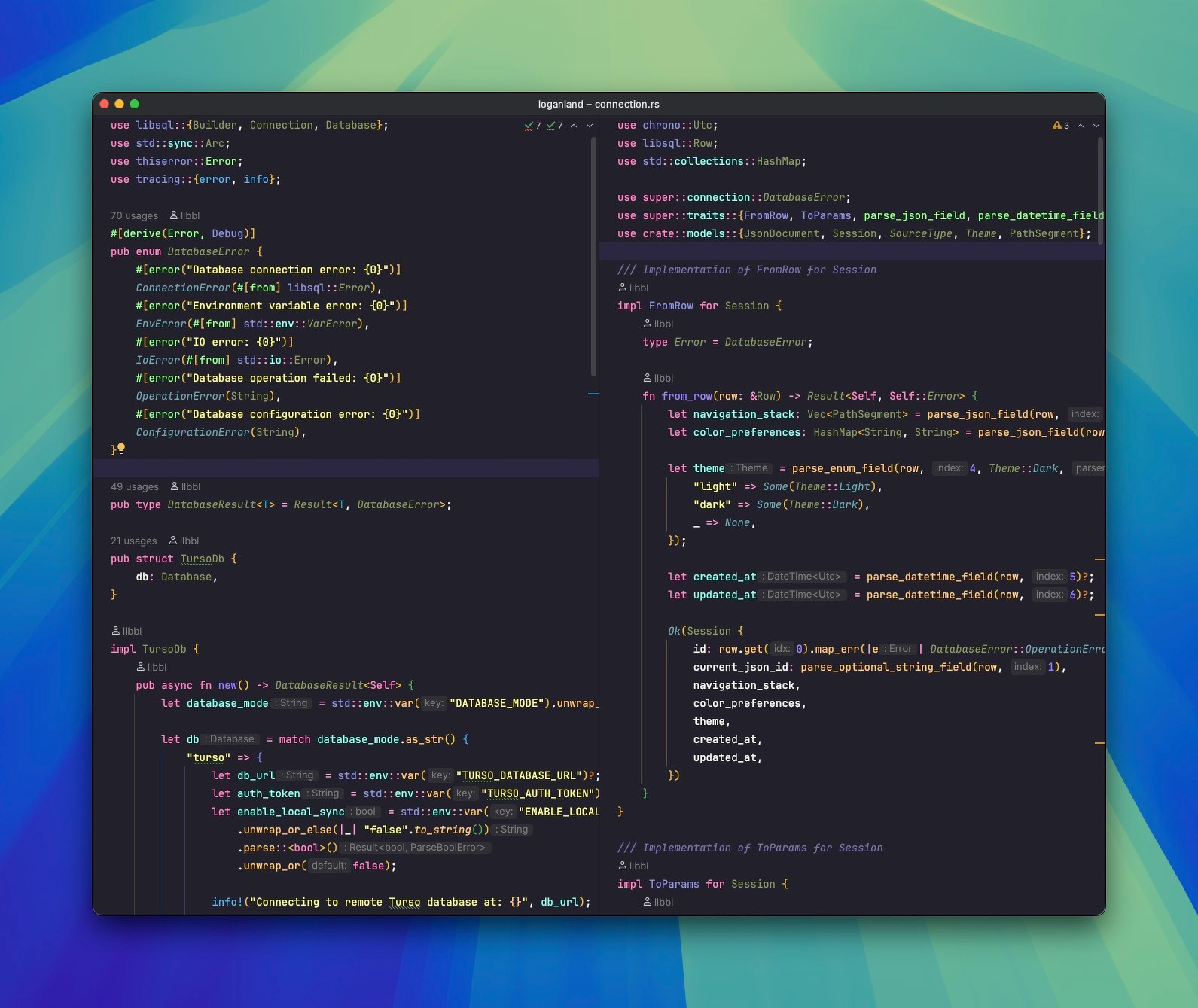
Rust I wrote for my Link in Bio site. I think Link in Bio is my favorite thing to build for learning a language or new library combination. Checkout Github Templates setting for base sites that you can iterate on.
-
It’s just #Vibes Man